
Add captions to Instagram Reels
Instagram can add basic captions to a Reel itself, but for bold, animated captions that look the same everywhere, add them before you post. Here is how to do both, for free.
- Free to use
- No signup
- No watermark
Your video stays on your device: nothing is uploaded.
A word of warning first: on Instagram, “caption” also means the text you write under a post. This page is about captions on the video: the words people read while you talk.
Add animated captions to a Reel, free
- Record or edit your Reel as usual and save the video to your phone or computer.
- Open the editor in your browser and add the video. It is not uploaded anywhere.
- Transcribe it, then tap any word that needs fixing.
- Pick a style. For Reels, Karaoke, Hormozi-style and Pop are popular choices.
- Export the MP4 and post it as a Reel. On an iPhone, save it to Photos first (see adding captions on iPhone).
There is no watermark, so the Reel looks like you made the captions by hand.
Use Instagram’s own captions
Instagram has two built-in options, and they are worth knowing:
- The captions sticker. While editing a Reel, open the stickers and choose Captions. Instagram writes down the speech, and you can fix words and pick from a few looks. (Instagram’s help centre describes the current steps.)
- Automatic closed captions. Instagram can generate captions that viewers switch on or off themselves. They are useful for accessibility, but you do not control how they look, and many viewers never turn them on.
Meta’s separate Edits app also has a captions feature, if you edit your Reels there.
Built-in captions are quick, but they only exist inside Instagram, offer a handful of styles and depend on your app version and language. Burned-in captions travel with the video: post the same file to TikTok and YouTube Shorts and it looks the same everywhere.
Captions sticker missing or not working?
A lot of people search for this. Instagram rolls features out unevenly, so the captions sticker or automatic captions may be missing for some accounts, regions, app versions or languages, or may not pick up speech over loud music. Things worth trying:
- Update the Instagram app, then open the Reel editor again.
- Check that the video has clear speech in a language Instagram supports for captions.
- Try the Edits app’s captions.
- Or skip the built-in tools: add the captions to the video yourself with the editor. It works the same on every account, in English, Spanish, German, French, Italian and Portuguese.
Where to put captions on a Reel
Instagram covers the bottom of a Reel with your name, the post text and the audio label, and the right edge with the like, comment and share buttons. Captions placed there get hidden.
- The default Bottom position sits about three quarters of the way down: above the area most apps cover, but check with a preview.
- Middle is the safest place if your Reel has a long post text or you add other stickers.
- Keep lines short so they do not run under the buttons on the right.
The caption safe zones guide has the details for Reels, TikTok and Shorts.
Settings that work well on Reels
- 2 or 3 words per line. Reels are watched fast; short lines are read in a glance.
- A heavy font with an outline. Montserrat or Anton with a thick black outline stays readable on any footage. See the best fonts for captions.
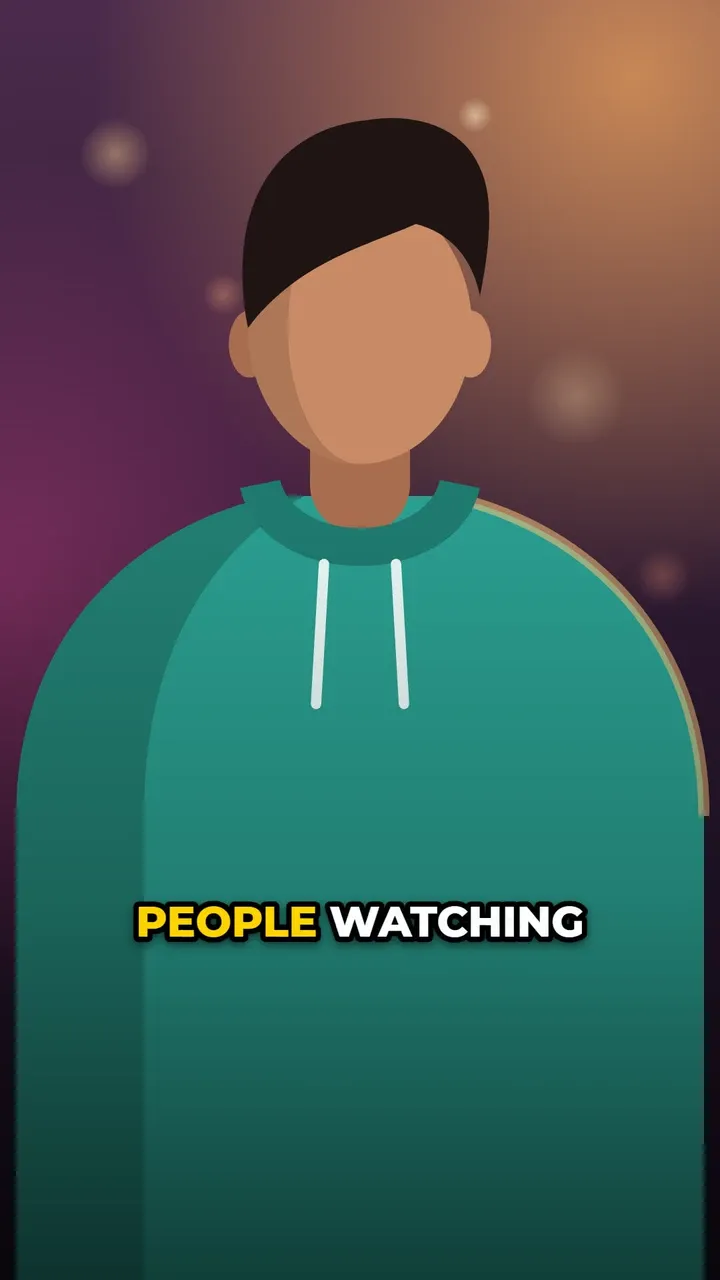
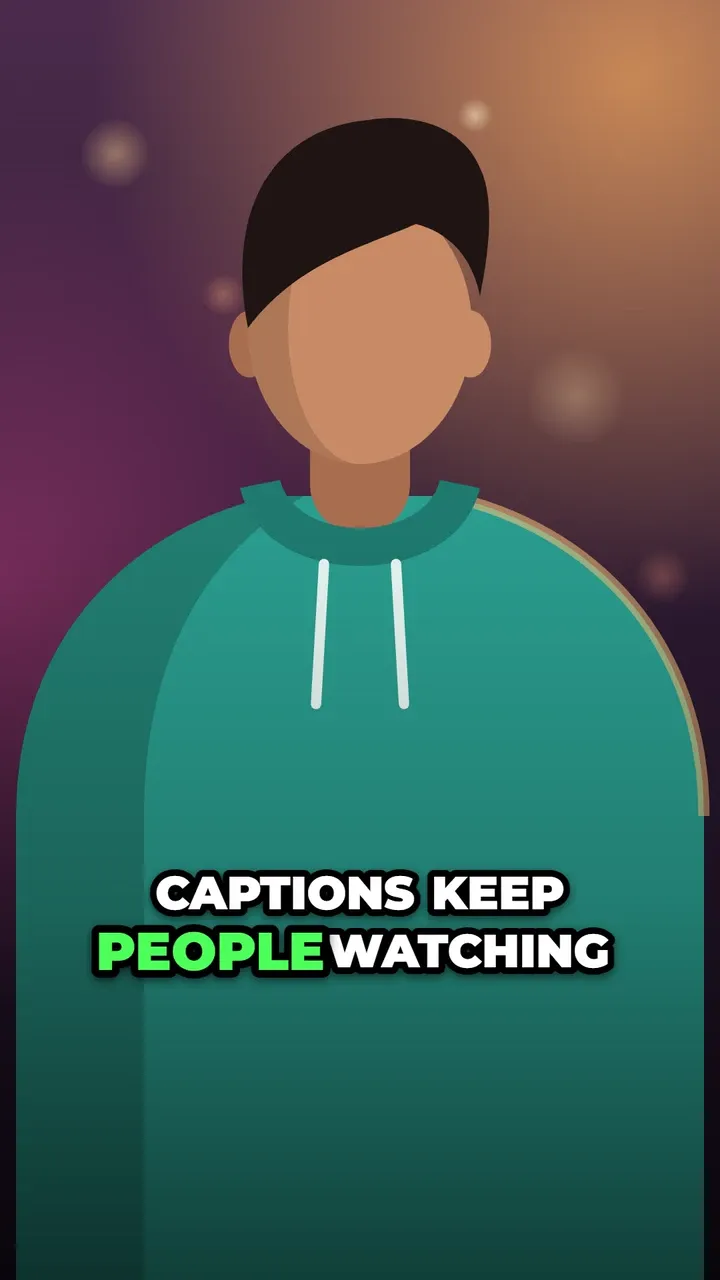
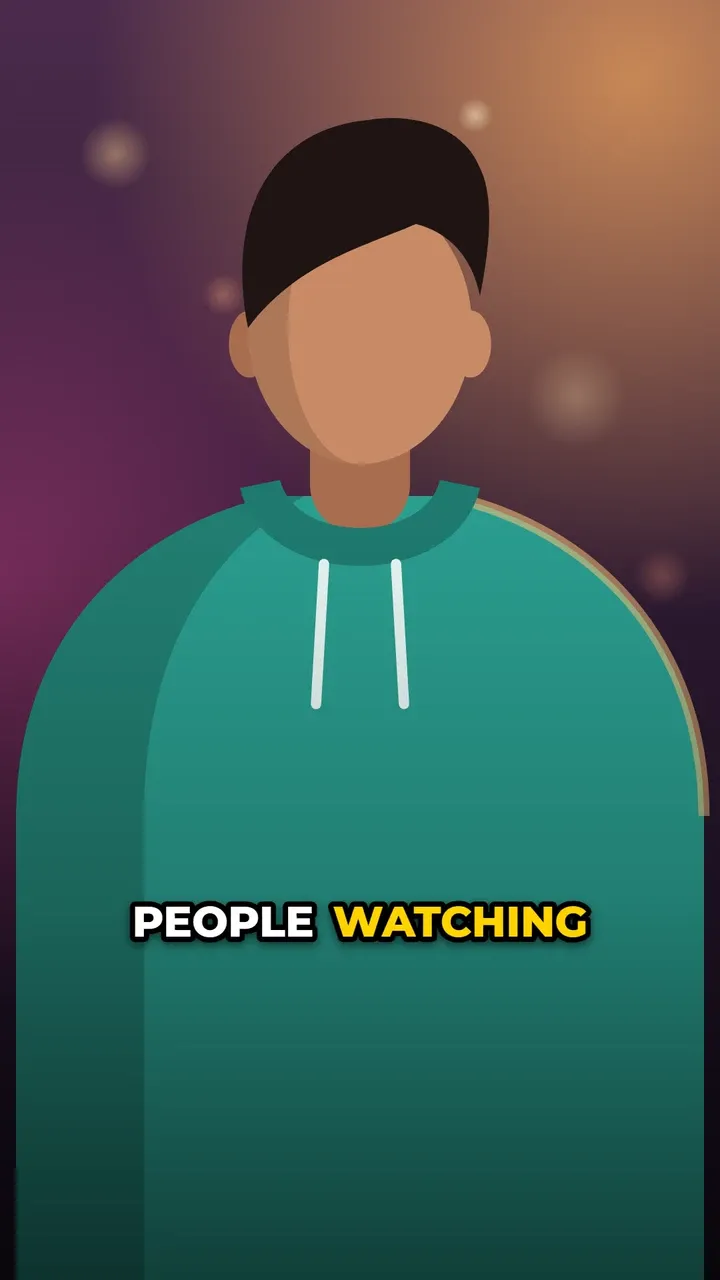
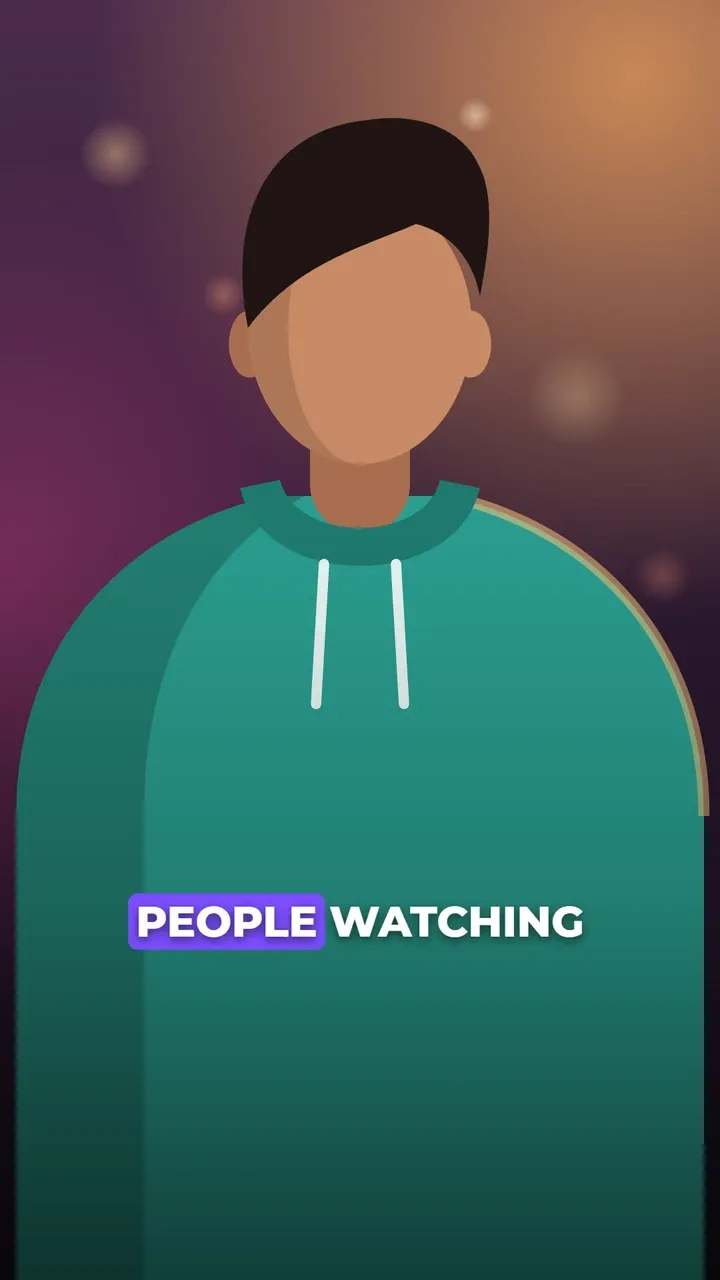
- Highlight the spoken word. Karaoke-style highlighting helps people follow along without the sound.
- Proofread once. A misheard name is the first thing commenters notice.
Questions
Does Instagram add captions to Reels automatically?
Instagram can make captions for many videos: as a captions sticker you add while editing a Reel, and as automatic closed captions that viewers can switch on. What you see depends on your app version, account and language.
Can I add captions to a Reel after posting it?
Captions that are part of the video have to be added before you upload. For a Reel that is already up, add captions to your original video and post it again.
What size should a Reel with captions be?
Vertical 9:16, ideally 1080 by 1920 pixels. CaptionOnReel keeps your video's size, up to 1080 pixels on the shorter side, so a normal phone video comes out ready for Reels.
Why use burned-in captions instead of Instagram's?
You choose the style, they look the same for every viewer, and the same video works on TikTok and YouTube Shorts too. Instagram's own captions are quicker but have fewer styles and stay inside Instagram.