
Add subtitles to a video for free
Pick a video, let your browser write down every word, fix anything it misheard and download an MP4 with the subtitles on it. It takes a few minutes, it is free, and your video never leaves your phone or computer.
- Free to use
- No signup
- No watermark
Your video stays on your device: nothing is uploaded.
Most videos are watched on a phone, in a feed, often with the sound off. Subtitles let your words reach people anyway. Here is the quickest free way to add them, and what to watch out for.
How to add subtitles to a video
- Add your video. Open the editor on your phone or computer and choose a video: MP4, MOV (including iPhone videos), WebM or MKV. It is read from your device, not uploaded.
- Transcribe it. Choose Fast transcription or High accuracy and the spoken language, or let the tool detect it. The first time, your browser downloads a speech model (about 80 to 600 MB, depending on the choice) and keeps it, so later videos start right away.
- Fix the words. Tap any word to correct it, move its timing in 50 ms steps, merge or split words, or remove one. Names, brands and numbers are the usual suspects.
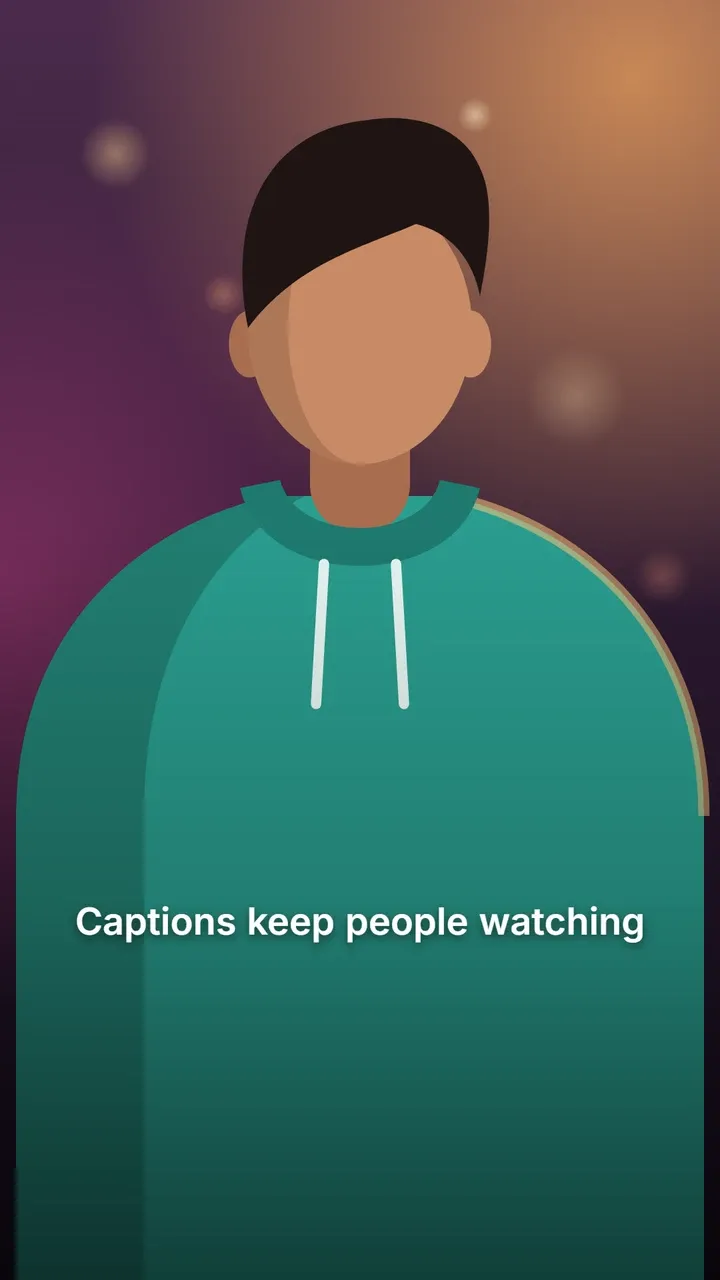
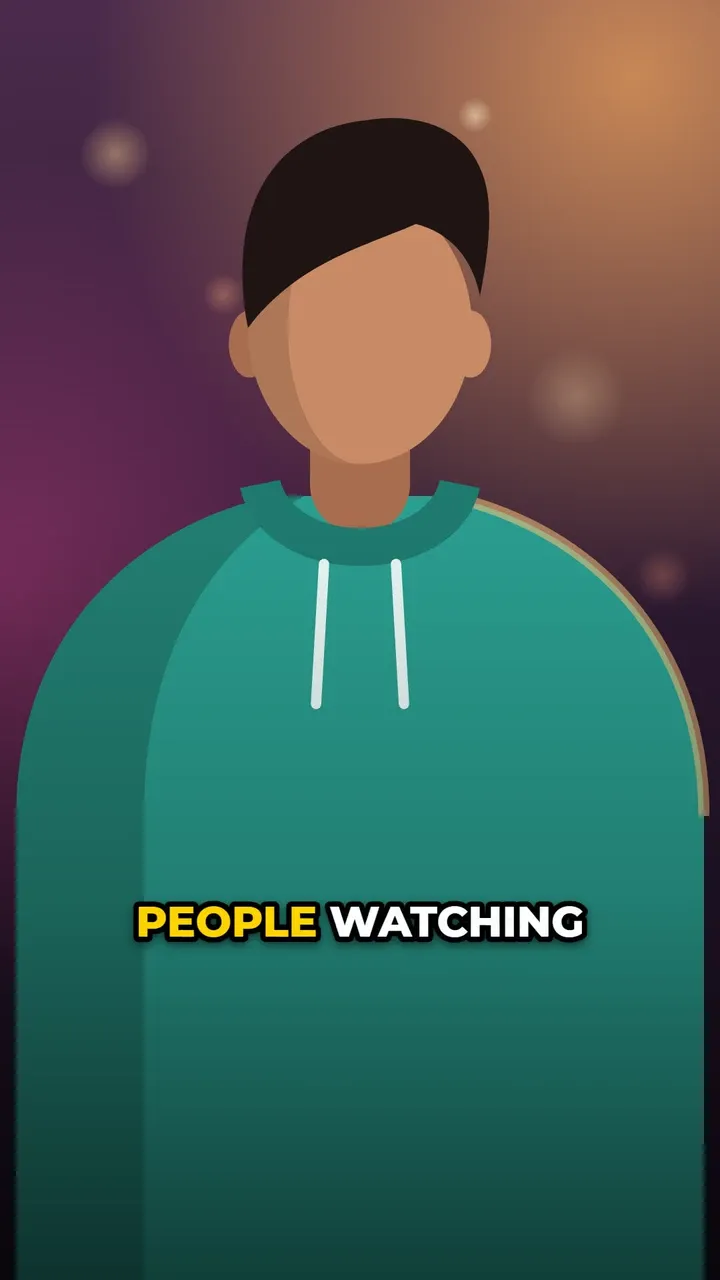
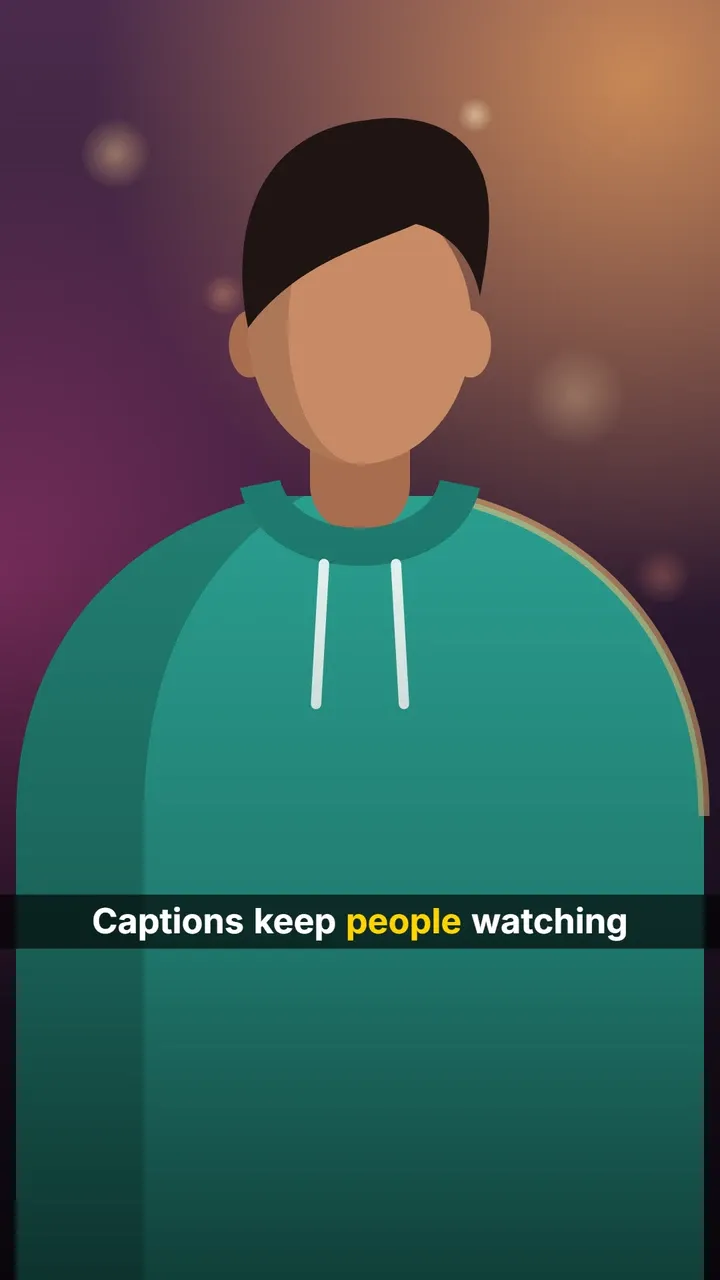
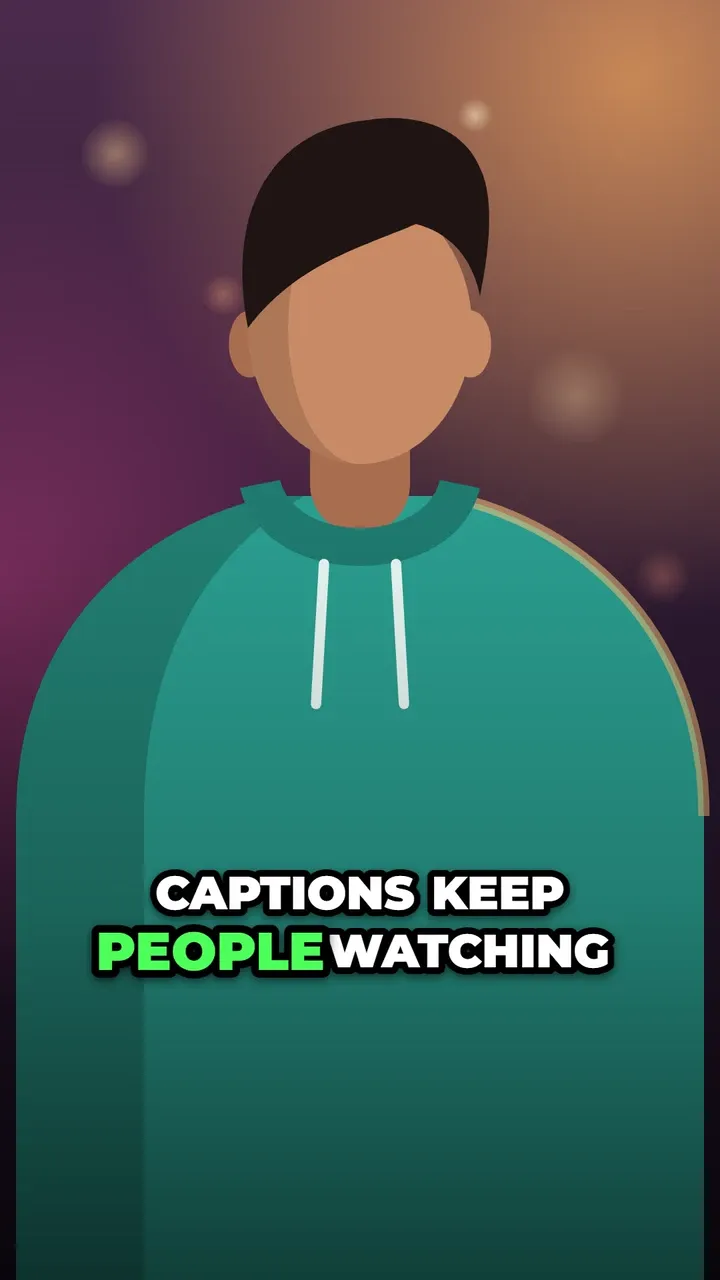
- Pick a look. Choose one of 22 caption styles, then change the font, size, colours, outline, background and position, and how many words show on each line.
- Export. Download an MP4 with the subtitles on it, at your video’s size up to 1080p and with its original sound. The download starts by itself when it is done.
Short videos usually take a few minutes from start to finish. There is no account to create and no watermark on the result.
What kind of subtitles you get
CaptionOnReel makes open subtitles: the text is part of the video picture. That is what you want for Reels, Shorts and TikToks, because the subtitles look exactly the same in every app and nobody has to switch them on.
What it does not make (yet) is a separate subtitle file such as SRT or VTT, which players show as closed captions that viewers can turn on and off. If you need one of those, for example for a long YouTube video, see captions vs subtitles for your options.
What you need
- A modern browser. The latest Chrome, Edge, Safari or Firefox, on a phone or a computer. Chrome and Edge are usually the fastest.
- A video with speech. Talking-head clips, interviews, podcasts, tutorials and voice-overs all work. Music without speech does not need subtitles, and the tool will not find any words in it.
- A short-ish video. On a modern computer, up to about 10 minutes is fine. On older computers and phones, stay under 3 to 5 minutes. The editor warns you when a video is on the long side, but never blocks it.
- One of six languages. English, Spanish, German, French, Italian or Portuguese. These are the languages the speech model writes most accurately, so the others are left out on purpose.
Tips for subtitles people can actually read
- Keep lines short. On vertical video, 2 to 4 words per line is easiest to read at a glance. Calm styles such as Minimal or Bar can take up to 6.
- Give the text contrast. A thick outline, a shadow or a background behind the words keeps them readable on bright or busy footage.
- Stay clear of the app’s buttons. Apps cover the bottom and the right edge of vertical videos with buttons and text. The caption safe zones guide shows where it is safe to put subtitles.
- Read them once before exporting. Automatic transcription is good, not perfect. A minute of proofreading saves a misheard word from going viral.
Other ways to add subtitles
- Inside the apps. Instagram, TikTok and YouTube can add their own automatic captions. They are quick, but plain, and stay inside that one app. See the guides for Instagram Reels, YouTube Shorts and TikTok.
- In a video editor. If you already edit in a desktop editor, its own caption tools keep everything in one place. You can also finish your edit there, export it, and add animated subtitles here as the last step.
- Free tools compared. The best free subtitle generators lists the free options, what each one is good at, and where the catches are.
Questions
Can I add subtitles to a video without uploading it?
Yes. CaptionOnReel turns the speech into text, shows the subtitles and makes the final MP4 inside your browser, so the video stays on your phone or computer the whole time.
Will the subtitles stay on the video when I post it?
Yes. They are drawn into the picture itself (open or burned-in subtitles), so they show in every app and on every device, and viewers cannot turn them off.
How accurate are automatic subtitles?
It depends on the sound. In our own test on a clear 61-second English clip, about 1 word in 12 needed fixing with Fast transcription and about 1 in 20 to 25 with High accuracy. Every word can be corrected before you export.
Can I add subtitles in a different language from the one spoken?
No, there is no translation. Subtitles are written in the language spoken in the video: English, Spanish, German, French, Italian or Portuguese.